Konboot 2.3 [Currently not working]
Windows XP, 7, 8 and 8.1
Click to download the USB version of Konboot 2.3. The file is password protected. If you want the password, visit the contact page and request the password. For the CD version, send a request using the contact page.
How to use
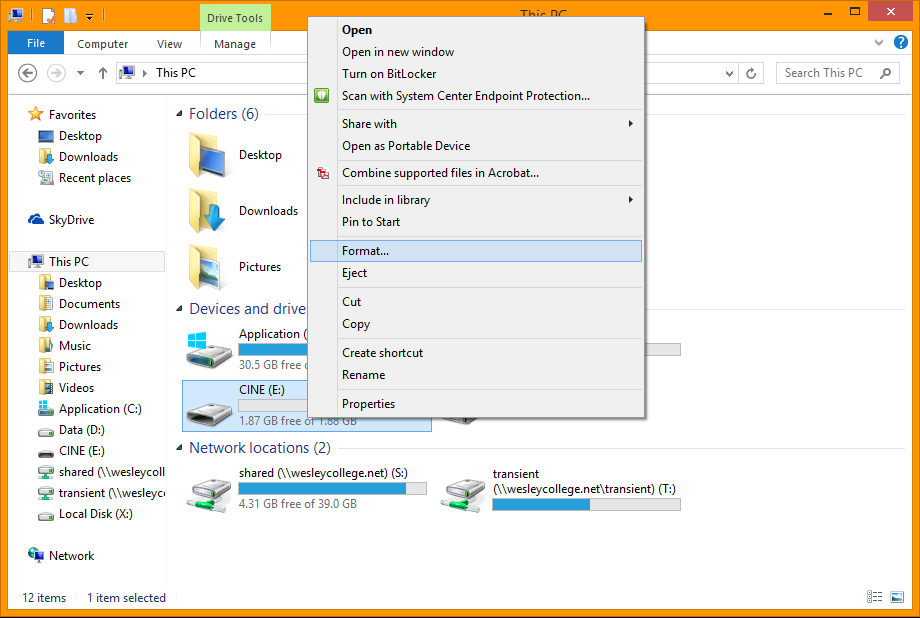
First, you will need to create the USB. Use one that's empty or one that you don't use any more. Plug the USB into your computer and navigate to 'My Computer' or 'This PC'. (Windows 8) Right click on the USB you plugged in, and select 'Format'.
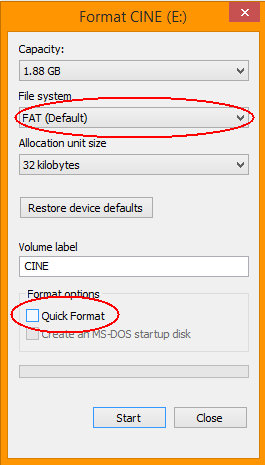
When you click on it, a small window will pop up, and you need to uncheck 'Quick Format'. Make sure the file system is on FAT as well.
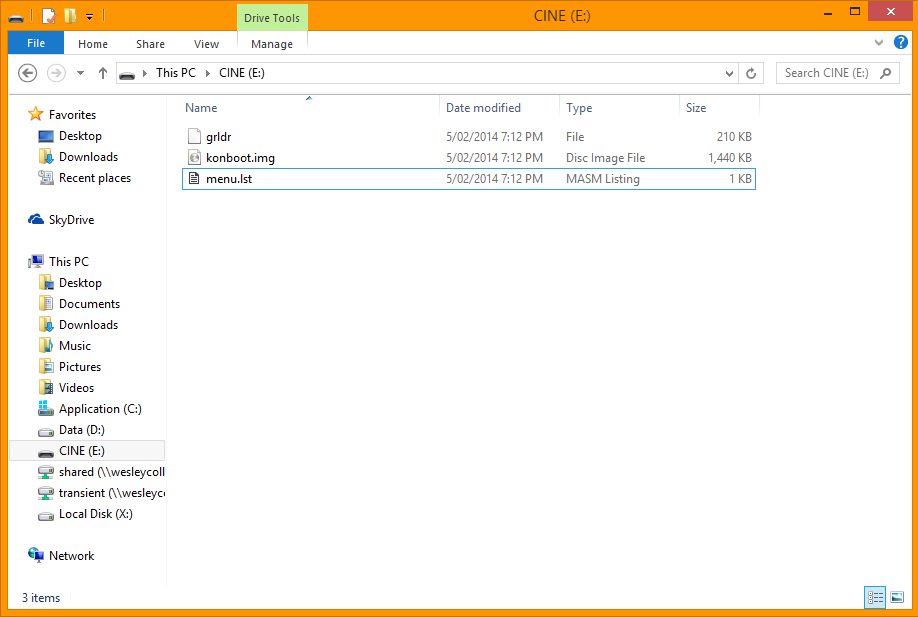
The format may take a few minutes. When it has completed, simply drag the contents of the zip file into the USB.
Now you need to restart your computer. Make sure you save all your work before restarting! On the startup screen, press the correct key to enter the setup menu. On windows 8 it is esc, but it may be different for you so be prepared, because you will only have a short amount of time to press the right key.
Once the setup menu appears, press the key indicated to enter the BIOS Setup. On my computer, it's f10. When in the BIOS Setup, look for an option to change the boot order. On windows 8, it should be located in the last tab at the top, then under startup options at the bottom. Follow to directions to move 'Hard Drive' or something similar to the top. This is so the computer boots from the USB instead of the computers drive. Press save and exit the setup menu.
Before your computer starts up, you should see a screen with a list, but only one item. (It should say 'Konboot') Press enter and the Konboot loading screen should show. (This just indicates that Konboot is running successfully) When your computer starts up, all local passwords should be temporarily removed, leaving easy access to the administrator!
